
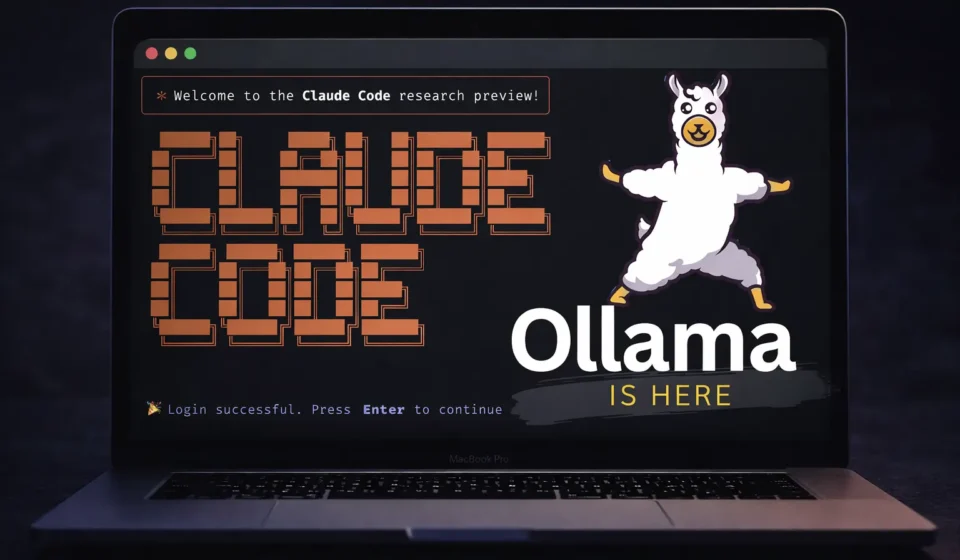
How to Install Claude Code Locally: Complete Guide
I’ll be honest when I first heard you could install Claude Code and run it completely offline on your own machine, I was skeptical. Why would anyone go through the hassle of setting up a local AI coding assistant when you can just use the cloud version with a few clicks?
Table Of Content
- What Is Claude Code? (And Why Run It Locally?)
- Claude Code: A Quick Overview
- Cloud vs. Local: What’s the Difference?
- When Should You Install Claude Code Locally?
- System Requirements: Can Your Machine Handle This?
- Minimum Requirements
- Quick Check: What Can Your Machine Run?
- What Is Ollama? (Your Local AI Engine)
- Ollama in Plain English
- Why Ollama Is Perfect for This Setup
- How Ollama Works (Simple Explanation)
- Step-by-Step: How to Install Claude Code Locally
- Step 1: Install Ollama
- Step 2: Download a Coding Model
- Step 3: Install Claude Code
- Step 4: Configure Claude to Use Your Local Ollama
- Step 5: Launch Claude Code and Test
- Troubleshooting Common Issues
- Problem 1: “Cannot connect to Ollama”
- Problem 2: Slow responses or system freezing
- Problem 3: “Model not found”
- Problem 4: Claude still trying to connect to cloud
- Problem 5: Code quality isn’t great
- Frequently Asked Questions
- Q: Is this actually free, or are there hidden costs?
- Q: How does local performance compare to cloud Claude?
- Q: Can I use this for commercial projects?
- Q: Will this work offline?
- Q: Can I switch between local and cloud Claude?
- Q: What if I want to try a different model?
- Best Practices for Using Local Claude Code
- 1. Start with Smaller Models, Upgrade If Needed
- 2. Give Claude Context
- 3. Use Ollama’s Model Library
- 4. Close Other Applications
- 5. Be Patient on First Launch
- Advanced: Customizing Your Setup
- Running Multiple Models Simultaneously
- Improving Performance with GPU
- Creating Model Aliases
- Final Thoughts: Is It Worth It?
Then I actually tried it. And everything changed.
After spending three weeks testing this setup on multiple projects, I’ve discovered something most developers don’t realize: running Claude Code locally isn’t just about privacy or saving money (though those are huge benefits). It’s about having a coding assistant that works exactly how you want it, with zero latency, zero API costs, and complete control over your data.
Your files never leave your computer. Your code stays private. No one’s tracking what you’re building. And unlike cloud-based AI tools that can rack up hundreds of dollars in API costs if you use them heavily, this setup is completely free after the initial installation.
In this guide, I’m going to walk you through exactly how to install Claude Code locally, step by step. I’ll show you the setup I’m currently using, explain why each piece matters, share the mistakes I made so you can avoid them, and give you real examples of how this changes your development workflow.
By the end, you’ll have a fully functional AI coding assistant running entirely on your own machine no cloud dependency, no subscriptions, no data leaving your control.
What Is Claude Code? (And Why Run It Locally?)
Before we dive into installation, let’s make sure we’re on the same page about what Claude Code actually is and why running it locally might be better than using the cloud version.
Claude Code: A Quick Overview
Claude Code is an AI-powered coding assistant that can:
- Read and understand your entire codebase
- Write new code based on your instructions
- Edit existing files with surgical precision
- Run terminal commands to test and debug
- Explain complex code in plain English
- Refactor messy code into clean, maintainable versions
Unlike simple code completion tools like GitHub Copilot, Claude Code is more like having a junior developer who can actually understand context, make decisions, and execute multi-step tasks.
Cloud vs. Local: What’s the Difference?
Cloud Version (The Default):
- ✅ Easy setup (literally just log in)
- ✅ Always uses the latest Claude models
- ✅ Works on any machine, no hardware requirements
- ❌ Your code gets sent to Anthropic’s servers
- ❌ Costs money via API usage or subscriptions
- ❌ Requires internet connection
- ❌ Subject to rate limits and service interruptions
Local Version (What This Guide Covers):
- ✅ Complete privacy nothing leaves your machine
- ✅ Zero ongoing costs (free after setup)
- ✅ Works offline once installed
- ✅ No rate limits (limited only by your hardware)
- ✅ Full control over which AI model you use
- ❌ Requires more technical setup
- ❌ Performance depends on your hardware
- ❌ Models aren’t quite as powerful as Claude Sonnet (yet)
When Should You Install Claude Code Locally?
This local setup makes perfect sense if you:
✅ Value privacy above all else You’re working on proprietary code, client projects, or anything sensitive that you don’t want sent to external servers.
✅ Want to avoid recurring costs If you use AI coding tools heavily, API costs can add up fast. I’ve seen developers spend $50-200/month on cloud AI tools. Local is free.
✅ Work offline frequently Traveling, unstable internet, or just prefer not being dependent on cloud connectivity.
✅ Like experimenting with open-source models You can switch between different AI models based on your needs and hardware, something cloud versions don’t allow.
✅ Need an AI that can actually DO things Not just autocomplete, but actually read files, edit code, and run commands autonomously.
This is NOT for you if:
❌ You want the absolute easiest setup possible
❌ Your machine has limited RAM (less than 8GB)
❌ You’re not comfortable using the terminal
❌ You need the absolute best AI performance and don’t mind paying for it
System Requirements: Can Your Machine Handle This?
Before you install Claude Code locally, let’s make sure your system can actually run it smoothly.
Minimum Requirements:
For Basic Models (Gemma 2B, small 7B models):
- RAM: 8GB minimum
- Storage: 10-15GB free space
- CPU: Any modern processor from the last 5 years
- OS: macOS, Linux, or Windows 10/11
For Better Performance (Qwen 7B, medium models):
- RAM: 16GB recommended
- Storage: 20-30GB free space
- CPU: Multi-core processor (4+ cores)
- GPU: Not required, but helps (NVIDIA with CUDA support)
For High-End Models (30B+ parameter models):
- RAM: 32GB+ required
- Storage: 50GB+ free space
- CPU: High-end multi-core processor
- GPU: Strongly recommended (16GB+ VRAM)
Quick Check: What Can Your Machine Run?
Here’s a simple guide based on what I’ve tested:
| Your RAM | Recommended Model | Speed |
|---|---|---|
| 8GB | gemma:2b | Fast, basic coding |
| 16GB | qwen2.5-coder:7b | Good balance |
| 32GB | qwen2.5-coder:14b | Great performance |
| 64GB+ | qwen3-coder:30b | Best quality |
I’m currently running qwen2.5-coder:7b on a MacBook Pro with 16GB RAM, and it handles most coding tasks smoothly with response times of 2-5 seconds.
What Is Ollama? (Your Local AI Engine)
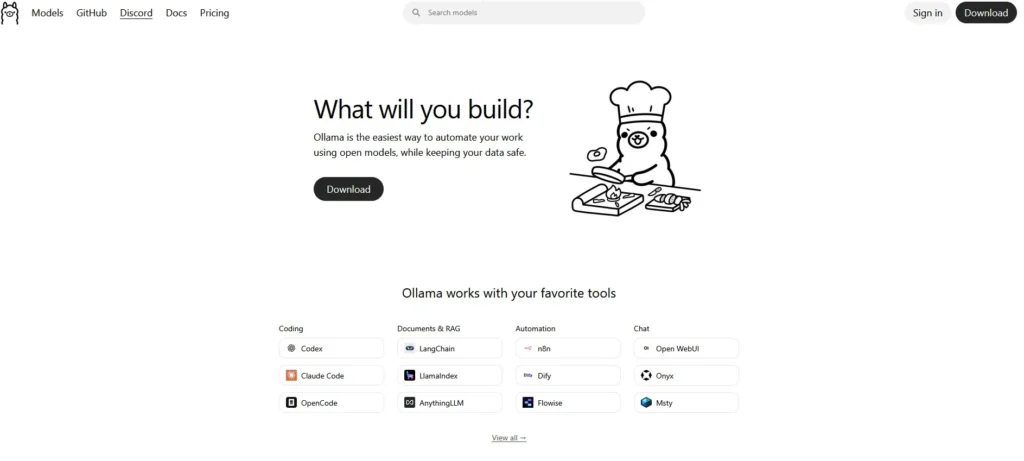
Before you can install Claude Code locally, you need to understand Ollama because it’s the foundation that makes everything work.
Ollama in Plain English
Think of Ollama as the “engine” that runs AI models on your computer, kind of like how a web browser runs websites or how Docker runs containers.
Instead of sending your prompts to a cloud service like OpenAI or Anthropic, Ollama lets you download AI models directly to your machine and run them locally. It handles all the complicated technical stuff behind the scenes model loading, memory management, serving API endpoints so you don’t have to.
Once Ollama is installed and running, it creates a local server (typically at http://localhost:11434) that other tools like Claude Code can connect to. This is how Claude Code can function completely offline while still having access to powerful AI capabilities.
Why Ollama Is Perfect for This Setup
1. Incredibly Simple to Use You don’t need Docker, virtual machines, Python environments, or complicated scripts. Installing Ollama takes literally 2 minutes, and downloading a model is just one terminal command.
2. Supports Great Open-Source Models Ollama has a library of coding-focused models like:
- Qwen Coder (my personal favorite for coding)
- DeepSeek Coder (excellent at understanding context)
- CodeLlama (Meta’s coding model)
- Gemma (Google’s lightweight model)
3. Everything Stays Local Your prompts, code, and files never leave your machine. Ollama doesn’t phone home, doesn’t track usage, doesn’t send telemetry. It’s genuinely private.
4. Easy Model Switching Want to try a different model? Just run ollama run [model-name] and Ollama downloads and switches to it automatically. No configuration files, no complex setup.
5. Runs Quietly in the Background Once started, Ollama just sits there ready to serve requests. It doesn’t slow down your system when idle, and you can forget it’s even running.
How Ollama Works (Simple Explanation)
Here’s what happens when you use Ollama with Claude Code:
- You install Ollama on your machine
- You download an AI model (like
qwen2.5-coder:7b) - Ollama runs that model locally and creates an API endpoint
- You install Claude Code and configure it to use Ollama instead of Anthropic’s cloud
- When you ask Claude to do something, it sends the request to Ollama
- Ollama processes it using the local model and sends back the response
- Claude executes the AI’s suggestions editing files, running commands, etc.
All of this happens on your machine. No internet required (after initial setup).
Step-by-Step: How to Install Claude Code Locally
Alright, let’s actually do this. I’m going to walk you through the exact process I use to install Claude Code locally.
Step 1: Install Ollama
First, you need to get Ollama running on your system.
For macOS:
Go to ollama.ai and download the Mac installer, or if you prefer the terminal:
bash
curl -fsSL https://ollama.ai/install.sh | shFor Linux:
bash
curl -fsSL https://ollama.ai/install.sh | shFor Windows:
Download the Windows installer from ollama.ai, or use PowerShell:
powershell
iex (iwr https://ollama.ai/install.ps1).ContentVerify Ollama is running:
After installation, check that Ollama is working:
bash
ollama --versionYou should see something like ollama version 0.1.XX.
Step 2: Download a Coding Model
Now you need an AI model optimized for coding. Based on your system specs (from the requirements section earlier), choose one:
For 8GB RAM systems:
bash
ollama run gemma:2bFor 16GB RAM systems (RECOMMENDED):
bash
ollama run qwen2.5-coder:7bFor 32GB+ RAM systems:
bash
ollama run qwen2.5-coder:14bFor 64GB+ RAM systems:
bash
ollama run qwen3-coder:30b
```

The first time you run this command, Ollama will download the model. This can take 5-20 minutes depending on the model size and your internet speed.

**What's happening during download:**
- The model file is being downloaded to `~/.ollama/models/`
- Ollama is setting up the necessary configurations
- Once complete, the model will be loaded into memory and ready to use

You'll know it's ready when you see a prompt like:
```
>>> Send a message (/? for help)
Type /bye to exit for now. The model stays downloaded for future use.
Step 3: Install Claude Code
Now it’s time to install Claude Code itself.
For macOS or Linux:
bash
curl -fsSL https://claude.ai/install.sh | bashFor Windows:
Open PowerShell as Administrator and run:
powershell
irm https://claude.ai/install.ps1 | iexVerify the installation:
bash
claude --versionYou should see version information confirming Claude Code is installed.
Important Note: If you’ve previously logged into Claude Code with an Anthropic account, you’ll need to log out first:
bash
claude logoutThis ensures Claude switches to local mode instead of trying to connect to Anthropic’s cloud servers.
Step 4: Configure Claude to Use Your Local Ollama
This is the critical step where you redirect Claude Code to use your local Ollama installation instead of Anthropic’s cloud API.
Set the local base URL:
This tells Claude Code where to find your AI model (Ollama’s local server):
bash
export ANTHROPIC_BASE_URL="http://localhost:11434"Provide a placeholder API key:
Claude Code still expects an API key in its code, even though we’re not using Anthropic’s cloud. Give it any dummy value:
bash
export ANTHROPIC_AUTH_TOKEN="ollama"Disable telemetry and cloud features (optional but recommended):
bash
export CLAUDE_CODE_DISABLE_NONESSENTIAL_TRAFFIC=1This stops Claude from trying to send usage data, surveys, or update checks to Anthropic’s servers.
Make these settings permanent (so you don’t have to set them every time):
For macOS/Linux (using bash):
Add these lines to your ~/.bashrc or ~/.zshrc file:
bash
echo 'export ANTHROPIC_BASE_URL="http://localhost:11434"' >> ~/.bashrc
echo 'export ANTHROPIC_AUTH_TOKEN="ollama"' >> ~/.bashrc
echo 'export CLAUDE_CODE_DISABLE_NONESSENTIAL_TRAFFIC=1' >> ~/.bashrc
source ~/.bashrc
For macOS (using zsh):
bash
echo 'export ANTHROPIC_BASE_URL="http://localhost:11434"' >> ~/.zshrc
echo 'export ANTHROPIC_AUTH_TOKEN="ollama"' >> ~/.zshrc
echo 'export CLAUDE_CODE_DISABLE_NONESSENTIAL_TRAFFIC=1' >> ~/.zshrc
source ~/.zshrc
For Windows (PowerShell):
Add to your PowerShell profile:
powershell
Add-Content $PROFILE '
$env:ANTHROPIC_BASE_URL="http://localhost:11434"
$env:ANTHROPIC_AUTH_TOKEN="ollama"
$env:CLAUDE_CODE_DISABLE_NONESSENTIAL_TRAFFIC=1
'
Step 5: Launch Claude Code and Test
Everything’s configured. Time to see it in action.
Navigate to any project folder:
bash
cd ~/your-project-folderStart Claude Code with your chosen model:
bash
claude --model qwen2.5-coder:7b
```

(Use whatever model you downloaded in Step 2)

You'll see Claude Code start up and display a prompt.

**Try a simple test:**

Type something like:
```
Create a simple hello world website with HTML and CSS
```

You should see Claude:
1. Acknowledge your request
2. Create the necessary files (`index.html`, `style.css`)
3. Write the actual code
4. Confirm completion

All of this is happening **entirely on your machine**. No cloud. No API calls. Completely offline.

**Another test to try:**
```
Read all the files in this directory and explain what this project does
```

Claude will scan your project files and give you a summary—again, all locally.

---

## **Real-World Example: What Can You Actually Do?**

Let me show you a real example from a project I was working on last week.

### **The Scenario**

I was building a simple task manager app and wanted to add a feature to export tasks as a CSV file. Instead of Googling, writing the code myself, and debugging, I asked my local Claude Code install:

**My prompt:**
```
Add a function to export all tasks to a CSV file. The CSV should have columns for task name, description, due date, and status. Add a button in the UI to trigger the export.
What Claude Code did (in about 30 seconds):
- Read my existing code to understand the task structure
- Created a new file called
exportTasks.jswith the export function - Modified my main app file to import and wire up the function
- Added a button to the HTML with proper styling
- Tested the code by running it in the terminal to check for errors
When I reviewed the code, it was clean, well commented, and actually worked on the first try.
Total time: Less than 2 minutes from asking to having working code.
Cost: $0 (versus paying API fees if I’d used a cloud service)
Privacy: My proprietary task manager code never left my laptop.
This is the kind of workflow you unlock when you install Claude Code locally.
Troubleshooting Common Issues
Based on my experience and what I’ve seen others encounter, here are the most common problems and how to fix them:
Problem 1: “Cannot connect to Ollama”
Symptoms: Claude Code throws an error like Error: connect ECONNREFUSED 127.0.0.1:11434
Solution: Ollama isn’t running. Start it manually:
bash
ollama serveLeave that terminal window open, open a new one, and try launching Claude again.
Permanent fix: Set Ollama to start automatically on system boot. On macOS/Linux:
bash
# Add Ollama as a background service (varies by OS)
# On macOS, Ollama usually auto-starts after first install
Problem 2: Slow responses or system freezing
Symptoms: Claude takes forever to respond, or your computer becomes unresponsive.
Solution: You’re running a model that’s too large for your RAM. Switch to a smaller model:
bash
claude --model gemma:2bOr close other memory intensive applications before using Claude.
Problem 3: “Model not found”
Symptoms: Error like Error: model 'qwen2.5-coder:7b' not found
Solution: You forgot to download the model first. Run:
bash
ollama pull qwen2.5-coder:7bThen try starting Claude again.
Problem 4: Claude still trying to connect to cloud
Symptoms: Claude asks you to log in or mentions Anthropic’s servers.
Solution: Your environment variables aren’t set correctly. Double-check:
bash
echo $ANTHROPIC_BASE_URLShould output: http://localhost:11434
If it’s empty, you need to set it again (see Step 4).
Problem 5: Code quality isn’t great
Symptoms: Claude’s suggestions are mediocre or buggy.
Solution: Try a larger/better model if your system can handle it:
bash
ollama pull qwen2.5-coder:14b
claude --model qwen2.5-coder:14b
Larger models = better code quality, but require more RAM.
Frequently Asked Questions
Q: Is this actually free, or are there hidden costs?
A: It’s genuinely free. The only “costs” are:
- Your time to set it up (30-60 minutes)
- Disk space for the models (5-30GB depending on model)
- Electricity to run your computer (negligible)
No subscriptions, no API fees, no cloud costs.
Q: How does local performance compare to cloud Claude?
A: Honestly? Cloud Claude (Sonnet 4) is still more capable for complex tasks. But for 80% of coding work writing functions, refactoring, explaining code, debugging local models like Qwen 2.5 Coder are totally fine.
The trade off is worth it if privacy and cost matter to you.
Q: Can I use this for commercial projects?
A: Yes, but check the license of the specific model you’re using. Most open source models (Qwen, Gemma, DeepSeek) allow commercial use, but always verify.
Q: Will this work offline?
A: Yes, after initial setup and model download, everything works offline. You could literally disconnect from the internet and keep coding with Claude.
Q: Can I switch between local and cloud Claude?
A: Yes! Just unset the environment variables to switch back to cloud:
bash
unset ANTHROPIC_BASE_URL
unset ANTHROPIC_AUTH_TOKEN
claude login
Set them again to go back to local mode.
Q: What if I want to try a different model?
A: Super easy. Download it:
bash
ollama pull deepseek-coder:6.7bThen use it:
bash
claude --model deepseek-coder:6.7bYou can have multiple models downloaded and switch between them anytime.
Best Practices for Using Local Claude Code
After a few weeks of daily use, here’s what I’ve learned works best:
1. Start with Smaller Models, Upgrade If Needed
Don’t immediately jump to the largest model your system can handle. Start with qwen2.5-coder:7b and see if it meets your needs. Only upgrade if you’re consistently unhappy with quality.
2. Give Claude Context
The more context you provide in your prompts, the better the results:
❌ Vague: “Fix this function”
✅ Better: “The login function is failing when users enter an email without an @ symbol. Add validation to check for a valid email format before processing.”
3. Use Ollama’s Model Library
Explore what’s available:
bash
ollama listTry different models for different tasks. I use:
qwen2.5-coder:7bfor general codinggemma:2bfor quick, simple tasks (faster responses)deepseek-coder:6.7bwhen I need better context understanding
4. Close Other Applications
When running local AI, RAM matters. Close Chrome tabs, Slack, Docker containers anything memory intensive for best performance.
5. Be Patient on First Launch
The first time you use a model after starting your computer, Ollama needs to load it into RAM. This takes 10-30 seconds. After that, responses are quick.
Advanced: Customizing Your Setup
Once you’re comfortable with the basics, here are some power-user tips:
Running Multiple Models Simultaneously
You can have Ollama run different models on different ports and switch between them:
bash
# Terminal 1
OLLAMA_PORT=11434 ollama serve --model qwen2.5-coder:7b

# Terminal 2
OLLAMA_PORT=11435 ollama serve --model gemma:2b
Then point Claude to whichever port/model you want to use.
Improving Performance with GPU
If you have an NVIDIA GPU, Ollama will automatically use it. Check:
bash
nvidia-smiIf your GPU is being used, you’ll see ollama in the processes list. This can make responses 5-10x faster.
Creating Model Aliases
Make it easier to switch models by creating bash aliases:
bash
alias claude-fast="claude --model gemma:2b"
alias claude-balanced="claude --model qwen2.5-coder:7b"
alias claude-best="claude --model qwen2.5-coder:14b"
Now you can just type claude-fast instead of remembering model names.
Final Thoughts: Is It Worth It?
After using this setup daily for three weeks, here’s my honest take:
When local Claude Code is BETTER than cloud:
- ✅ You’re working on sensitive/proprietary code
- ✅ You use AI heavily and want to avoid API costs
- ✅ You work offline or have unreliable internet
- ✅ You value privacy and control
- ✅ You enjoy tinkering with open-source tools
When cloud Claude is probably better:
- ✅ You want zero setup hassle
- ✅ You need the absolute best AI performance
- ✅ Your machine has limited resources
- ✅ You’re not technical and just want it to work
- ✅ Cost isn’t a concern
For me? I use both. Cloud Claude for complex architecture decisions and really tricky bugs. Local Claude for 90% of daily coding tasks refactoring, writing tests, explaining code, quick features.
The privacy and zero cost make it worth the initial setup time. Your code stays on your machine. No one’s tracking what you’re building. And you never have to worry about API bills at the end of the month.
If you made it this far and successfully got Claude Code running locally, congrats! You now have a genuinely private, offline AI coding assistant that costs nothing to run.
Now go build something cool with it.
Comments are closed.

[…] initially tested Clawdbot with Claude Opus. While it worked well, I noticed that it consumed a lot of space because it sends the entire .md […]