OpenClaw AI Assistant Review: Best Personal AI Bot (2026)
I’ve tested at least a dozen AI assistants over the past year ChatGPT, Claude, Gemini, various chatbots and honestly? Most of them feel like fancy search engines. You ask a question, get an answer, and that’s it. No memory, no proactive help, no real understanding of what you’re actually trying to accomplish.
Table Of Content
- What Exactly Is OpenClaw AI Assistant?
- The Simple Explanation
- What Makes OpenClaw Different from Other AI Assistants?
- Who Created OpenClaw?
- My Experience: 6 Weeks Using OpenClaw AI Assistant Daily
- Week 1: Installation and Initial Setup
- Week 2: Testing Basic Functionality
- Week 3: The Claude Opus Problem
- Week 4: Telegram Integration Issue (And How OpenClaw Fixed Itself)
- Week 5: Proactive Notifications
- Week 6: Tool Integration Without Manual Setup
- Key Features of OpenClaw AI Assistant (Detailed Breakdown)
- 1. Full System Access
- 2. Persistent Memory via Markdown Files
- 3. Multi-Model Flexibility
- 4. Messaging Platform Integration
- 5. Built-In Skills Library
- 6. Proactive Behavior
- 7. Self-Diagnosis and Fixing
- Installation Guide: How to Set Up OpenClaw AI Assistant
- System Requirements
- Step 1: Install Prerequisites
- Step 2: Clone OpenClaw Repository
- Step 4: Configure Your AI Model
- Step 5: Set Up File System Access
- Step 6: Configure Messaging Platforms (Optional)
- Step 7: Start OpenClaw AI Assistant
- Step 8: Test It
- Troubleshooting Common Installation Issues
- OpenClaw AI Assistant vs. Other AI Tools (Detailed Comparison)
- OpenClaw vs. ChatGPT
- OpenClaw vs. Claude Desktop
- OpenClaw vs. Personal AI Apps (Notion AI, Mem, etc.)
- Pricing: How Much Does OpenClaw AI Assistant Actually Cost?
- Cost Breakdown
- My Monthly Costs
- Pros and Cons of OpenClaw AI Assistant (Honest Assessment)
- Pros
- Cons
- Who Should Use OpenClaw AI Assistant?
- ✅ Perfect for
- ❌ NOT for
- Real-World Use Cases for OpenClaw AI Assistant
- Use Case 1: Personal Knowledge Management
- Use Case 2: Email Triage and Management
- Use Case 3: Coding Assistant with File Access
- Use Case 4: Home Automation Hub
- Use Case 5: Research Assistant
- Frequently Asked Questions About OpenClaw AI Assistant
- Q: Is OpenClaw AI assistant safe to use?
- Q: Can I use OpenClaw AI assistant completely offline?
- Q: How much technical knowledge do I need?
- Q: Can I access OpenClaw from my phone?
- Q: What happens to my conversation history?
- Q: Can OpenClaw AI assistant delete files or mess up my system?
- Q: How does memory work? Does it remember everything forever?
- Q: Can I use multiple AI models at once?
- My Final Verdict on OpenClaw AI Assistant
- What OpenClaw AI Assistant Does Exceptionally Well
- Where OpenClaw AI Assistant Falls Short
- Who Should Use OpenClaw AI Assistant
- My Personal Usage
Then I discovered OpenClaw AI assistant (also known as Clawdbot), and something clicked. For the first time, it felt like I was working with an actual personal assistant one that remembers our conversations, can access my files, fixes its own problems, and even sends me notifications when something important happens.
OpenClaw AI assistant is completely open source and free. It runs locally on your own computer or server, which means your data never leaves your control. No subscriptions, no cloud dependency, no privacy concerns.
I’ve been using OpenClaw AI assistant daily for the past six weeks, testing it with real workflows: email management, file organization, web research, coding assistance, and even home automation. In this review, I’m going to share exactly what OpenClaw AI assistant can do, how it compares to other AI assistants, whether it’s worth the setup effort, and who should (and shouldn’t) use it.
By the end, you’ll know if OpenClaw AI assistant is the personal AI tool you’ve been looking for, or if you should stick with simpler alternatives.
What Exactly Is OpenClaw AI Assistant?
Let’s start with the basics: what is OpenClaw AI assistant, and what makes it different from ChatGPT, Claude, or other AI tools you’ve probably tried?
The Simple Explanation
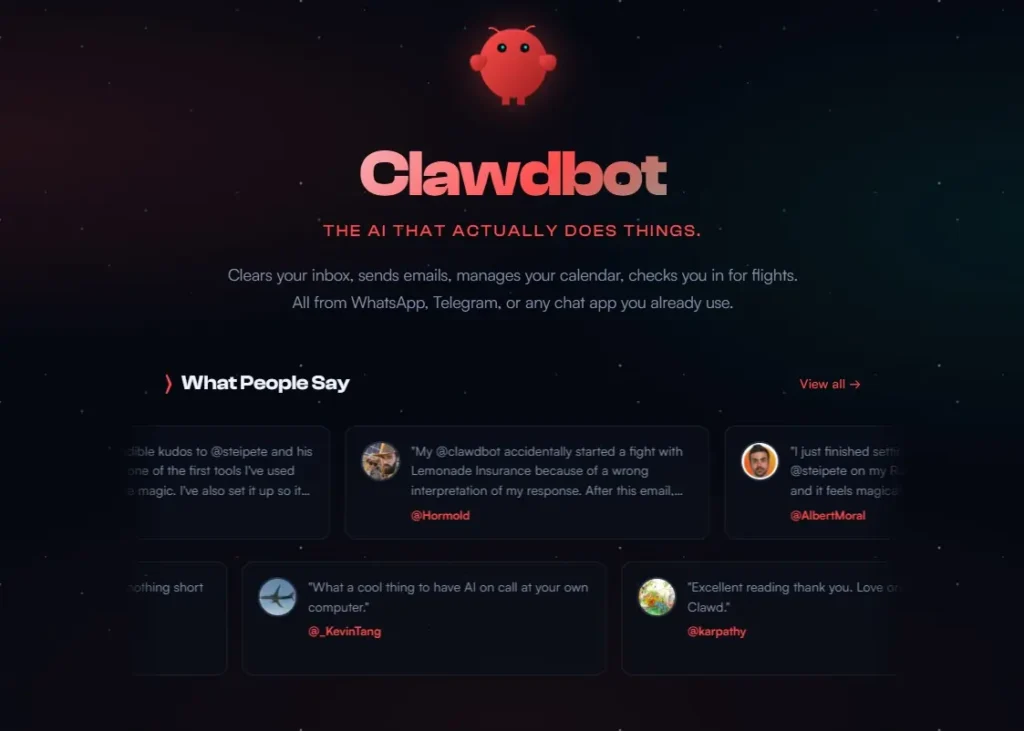
OpenClaw AI assistant (previously called Clawdbot) is an open-source personal AI assistant that runs on your own computer or server. Unlike web-based chatbots that only respond when you ask questions, OpenClaw AI assistant can:
- Access files on your system
- Remember conversations and preferences over time
- Integrate with messaging apps (Telegram, WhatsApp, iMessage)
- Run proactively in the background
- Send you notifications about important events
- Fix its own technical issues
Think of it as having a personal assistant that lives on your computer, has access to your files and tools, and learns from every interaction.
What Makes OpenClaw Different from Other AI Assistants?
Traditional AI Assistants (ChatGPT, Claude, etc.):
- Cloud-based (your data goes to external servers)
- No system access (can’t read your files or run commands)
- No memory between sessions
- Reactive only (waits for you to ask)
- Subscription costs ($20-30/month)
OpenClaw AI Assistant:
- Self-hosted (runs on your own hardware)
- Full system access (reads files, executes commands)
- Persistent memory (remembers everything in markdown files)
- Proactive behavior (can notify you without being asked)
- Completely free and open source
The core difference: OpenClaw AI assistant is designed to be a true personal assistant, not just a chatbot.
Who Created OpenClaw?
OpenClaw AI assistant is an open-source project available on GitHub at github.com/openclaw/openclaw. It’s built by developers who wanted an AI assistant with:
- Privacy (no data sent to third parties)
- Control (runs on your own infrastructure)
- Flexibility (works with multiple AI models)
- Extensibility (you can add custom skills)
The project is actively maintained, with regular updates and a growing community.
My Experience: 6 Weeks Using OpenClaw AI Assistant Daily
Let me walk you through my actual experience with OpenClaw AI assistant, including what impressed me and what frustrated me.
Week 1: Installation and Initial Setup
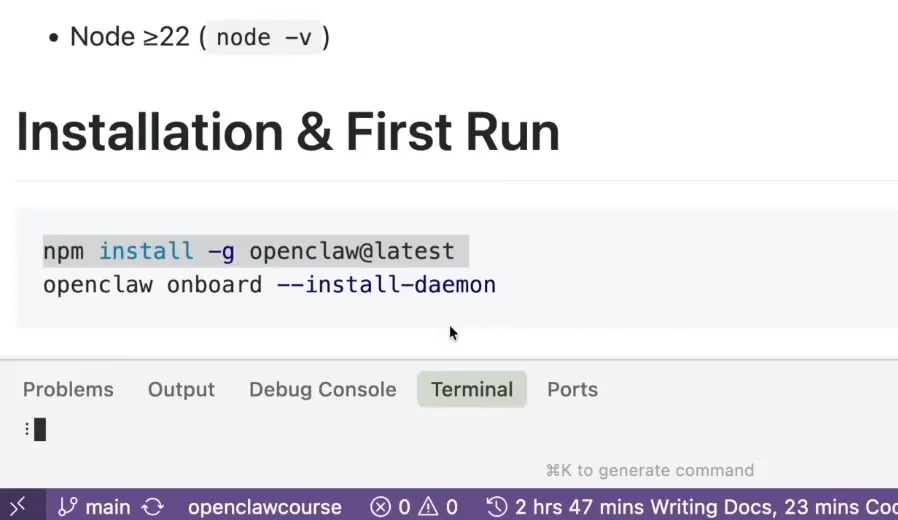
I’m reasonably technical (I can use terminal commands and follow documentation), but I’m not a DevOps engineer. I was curious if OpenClaw AI assistant would be too complicated.
Installation took me about 45 minutes. Here’s what was involved:
Step 1: Installing dependencies
- Python 3.10+
- Git
- Some Python packages
Step 2: Cloning the repository
git clone https://github.com/openclaw/openclaw
cd openclaw
Step 3: Configuration
- Created a config file with my AI model API keys
- Set up file system permissions
- Configured messaging integrations
Was it “easy”? Not quite plug-and-play, but the documentation was clear. If you’ve ever installed software from GitHub before, you’ll be fine.
First impression: The setup wasn’t as scary as I expected, but it’s definitely not for complete non-technical users.
Week 2: Testing Basic Functionality
Once OpenClaw AI assistant was running, I started with simple tasks:
Test 1: File access Me: “Can you list all the markdown files in my Documents folder?”
OpenClaw: [Lists files correctly]
Me: “Read the file called ‘project-ideas.md’ and summarize it”
OpenClaw: [Reads file, provides accurate summary]
This was the first ‘wow’ moment. Unlike ChatGPT where I’d have to copy-paste file contents, OpenClaw AI assistant just accessed it directly.
Test 2: Memory persistence Day 1 conversation: Me: “My favorite programming language is Python”
Day 3 conversation: Me: “Suggest a project I could build”
OpenClaw: “Since you prefer Python, here’s a project idea…” [references my preference from Day 1]
It actually remembered. This seems small, but it changes how you interact with AI. You’re building a relationship over time, not starting fresh every session.
Week 3: The Claude Opus Problem
I initially configured OpenClaw AI assistant to use Claude Opus as the AI model. It worked well functionally, but I noticed something concerning:
Problem: Every request was sending my entire conversation history markdown file (~500KB) to the API.
Result:
- Slower responses
- Higher API costs
- Hitting context limits quickly
Solution: I switched to using Minimax (a lighter model), which was more efficient for my use case.
Lesson learned: OpenClaw AI assistant’s flexibility is a strength, but you need to choose the right model for your hardware and usage patterns.
Week 4: Telegram Integration Issue (And How OpenClaw Fixed Itself)
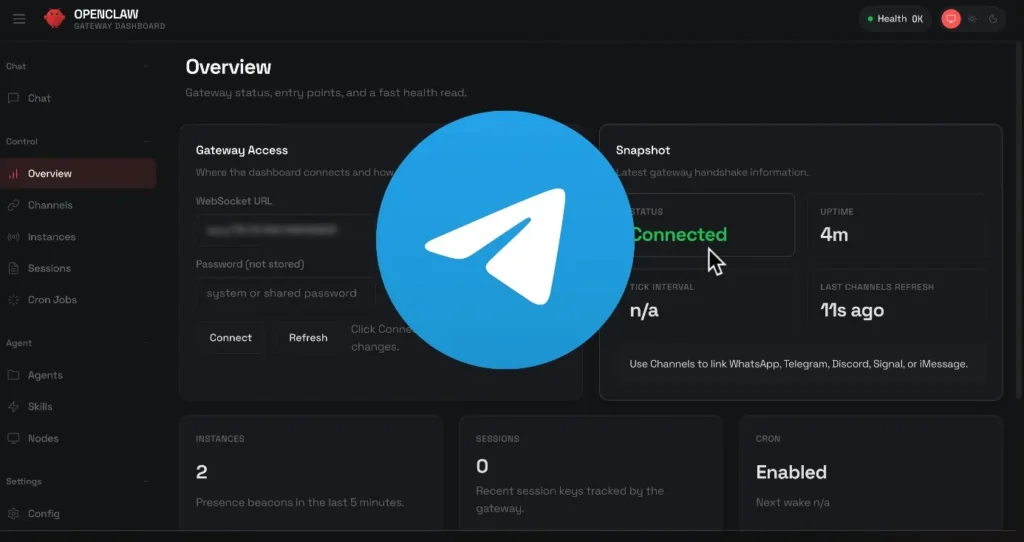
I wanted to use OpenClaw AI assistant via Telegram so I could access it from my phone. I set it up according to the docs, but responses weren’t coming through.
Here’s what happened:
Me: “Why aren’t my Telegram messages getting responses?”
OpenClaw: “Let me check the logs…” [accesses its own log files] “I see the issue there’s a webhook configuration problem. I’ll fix it.”
30 seconds later…
OpenClaw: “Fixed. The Telegram webhook is now properly configured. Try sending a test message.”
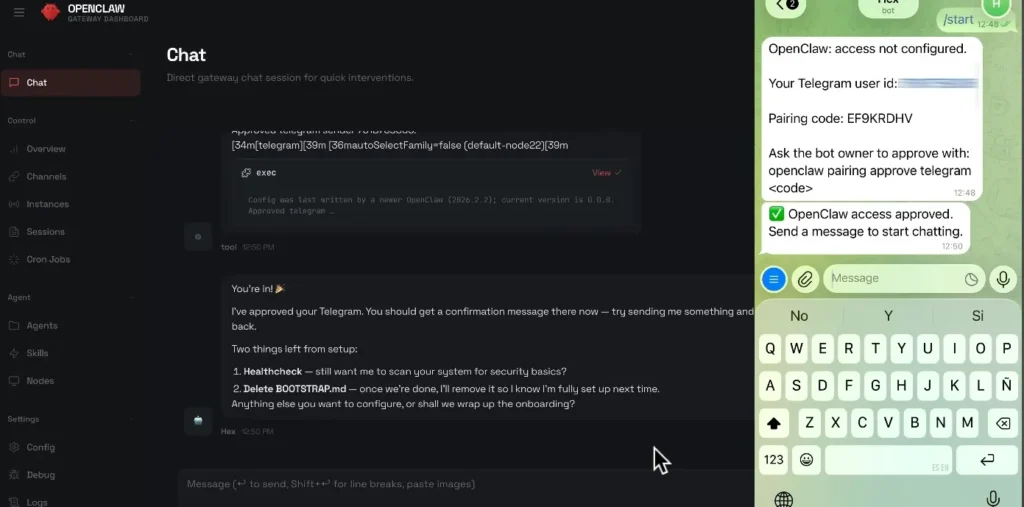
I sent “Hello” via Telegram, and got an instant response.
This blew my mind. OpenClaw AI assistant diagnosed and fixed its own technical problem without me touching config files or restarting anything.
This is what separates it from other AI tools: It has actual system access and autonomy.
Week 5: Proactive Notifications
I configured OpenClaw AI assistant to monitor my email inbox and notify me about important messages.
Example:
11:30 AM: [Notification on my phone] OpenClaw: “You received an email from [client name] with subject ‘Urgent: Project deadline change.’ This appears time-sensitive.”
I checked the email immediately and responded.
Why this matters: I don’t have to constantly check email or ask the assistant “Do I have any important messages?” It tells me when something needs attention.
Other proactive behaviors I set up:
- Notify when specific GitHub repos get updated
- Alert when calendar events are 30 minutes away
- Warn when disk space is low
- Remind about tasks I mentioned in conversations
Week 6: Tool Integration Without Manual Setup
One of my favorite features emerged when I asked OpenClaw AI assistant to search the web for current information.
Me: “Search the web for the latest news about AI regulation”
OpenClaw: “I need the Brave Search API to search the web. If you provide an API key, I can configure it automatically.”
Me: [Provided API key]
OpenClaw: “API key added and configured. Searching now…”
[Returns search results]
What just happened: OpenClaw AI assistant identified a missing capability, told me what it needed, and configured the tool itself after I provided credentials.
No manual editing of config files. No restarting. It just worked.
This self-configuration ability is what makes OpenClaw AI assistant feel less like software and more like a real assistant who learns and adapts.
Key Features of OpenClaw AI Assistant (Detailed Breakdown)
Let me break down the features that make OpenClaw AI assistant stand out:
1. Full System Access
OpenClaw AI assistant can interact with your computer like a real person would:
What it can do:
- Read and write files
- Execute terminal commands
- Access APIs and web services
- Monitor system resources
- Integrate with local applications
Example use case: “Organize my Downloads folder by moving PDFs to Documents/PDFs and images to Pictures/Screenshots”
OpenClaw executes the file operations automatically.
Why this matters: You can actually delegate real tasks, not just ask questions.
Security note: This is powerful but requires trust. Only use OpenClaw AI assistant on systems you control, and review the code if you’re concerned about what it can access.
2. Persistent Memory via Markdown Files
Unlike ChatGPT or Claude (which forget everything when you close the browser), OpenClaw AI assistant maintains a persistent memory.
How it works:
- Every conversation is stored in a
.mdfile - The assistant references this file in future conversations
- You can manually edit the memory file if needed
Example:
Week 1: “I’m working on a mobile app for task management”
Week 4: “Can you help me debug this React Native code?”
OpenClaw: “Sure, this is for your task management app, right? Let me check the code…”
It remembered the context from a conversation weeks ago.
Why this is powerful:
- No need to re-explain your projects every time
- Builds a genuine working relationship over time
- You can review the memory file to see what it knows
3. Multi-Model Flexibility
OpenClaw AI assistant isn’t locked to one AI provider. You can use:
Supported models:
- Claude (Opus, Sonnet, Haiku)
- OpenAI GPT models
- Anthropic models
- Minimax
- Local models (Ollama, LM Studio)
- Any OpenAI-compatible API
Why this matters:
- Choose based on cost, performance, privacy
- Switch models for different tasks
- Use local models for complete privacy
- Not dependent on one company’s API
My setup:
- Minimax for most conversations (fast, cheap)
- Claude Sonnet for complex coding tasks
- Local Ollama model for sensitive information
4. Messaging Platform Integration
OpenClaw AI assistant works across multiple platforms:
Supported:
- Telegram
- iMessage
- Web interface
- API (build your own interface)
Why this matters: You can interact with your assistant from anywhere—your phone while traveling, your laptop at home, or your work computer.
My usage:
- Telegram for quick questions on the go
- Web interface for long conversations
- iMessage for home automation commands
5. Built-In Skills Library
OpenClaw AI assistant comes with pre-built skills (like apps on a phone):
Examples of included skills:
- Email management
- Calendar integration
- File organization
- Web search
- Code execution
- Note-taking
- Task management
- Home automation (if you have smart devices)
You can also create custom skills if you know Python.
Example custom skill I created: “Monitor my website’s uptime and notify me if it goes down”
This required about 30 lines of Python code, which OpenClaw AI assistant helped me write.
6. Proactive Behavior
This is what separates OpenClaw AI assistant from reactive chatbots.
Proactive capabilities:
- Send notifications based on events
- Run scheduled tasks
- Monitor systems and alert on issues
- Remind about commitments
- Suggest actions based on context
Example workflow:
Morning: “You have 3 meetings today. Your first meeting is at 10 AM with the marketing team. Here’s the agenda from your calendar.”
Afternoon: “Your GitHub PR has been approved. Ready to merge?”
Evening: “Your weekly report is due tomorrow. Want me to draft it based on this week’s project notes?”
7. Self-Diagnosis and Fixing
One of the most impressive features: OpenClaw AI assistant can debug itself.
What it can do:
- Read its own log files
- Identify configuration issues
- Fix common problems automatically
- Suggest solutions for errors
Real example from my usage: The web search feature stopped working. OpenClaw AI assistant checked its logs, saw the API key had expired, told me to update it, and reconfigured itself after I provided the new key.
Zero downtime. No manual debugging.
Installation Guide: How to Set Up OpenClaw AI Assistant
Let me give you the step-by-step process I followed, with more detail than the original article.
System Requirements
Minimum:
- OS: Linux, macOS, or Windows (WSL)
- RAM: 4GB (8GB+ recommended)
- Storage: 2GB free space
- Python: 3.10 or higher
- Internet: Required for AI API calls (unless using local models)
Recommended:
- 16GB RAM (if running local AI models)
- SSD storage (faster file access)
- Stable internet connection
Step 1: Install Prerequisites
On macOS:
# Install Homebrew if you don't have it
/bin/bash -c "$(curl -fsSL https://raw.githubusercontent.com/Homebrew/install/HEAD/install.sh)"

# Install Python 3.10+
brew install python@3.10

# Install Git
brew install git
On Linux (Ubuntu/Debian):
sudo apt update
sudo apt install python3.10 python3-pip git
On Windows:
- Install WSL2 (Windows Subsystem for Linux)
- Follow Linux instructions inside WSL
Step 2: Clone OpenClaw Repository
git clone https://github.com/openclaw/openclaw
cd openclaw
Step 3: Install Python Dependencies
pip install -r requirements.txtThis installs all the Python packages OpenClaw AI assistant needs.
Step 4: Configure Your AI Model
Create a configuration file:
cp config.example.yaml config.yaml
nano config.yaml
Add your AI API credentials:
ai_model:
  provider: "anthropic"  # or "openai", "minimax", "ollama"
  api_key: "your-api-key-here"
  model: "claude-sonnet-4"
Getting API keys:
- Claude: console.anthropic.com
- OpenAI: platform.openai.com
- Minimax: minimax.ai (if you want a lighter model)
- Ollama: No API key needed (runs locally)
Step 5: Set Up File System Access
Grant OpenClaw AI assistant permission to access specific directories:
file_access:
  allowed_paths:
    - "/Users/yourname/Documents"
    - "/Users/yourname/Downloads"
  restricted_paths:
    - "/Users/yourname/.ssh"  # Keep sensitive directories off-limits
Step 6: Configure Messaging Platforms (Optional)
For Telegram:
- Create a bot via @BotFather on Telegram
- Get your bot token
- Add to config:
messaging:
  telegram:
    enabled: true
    bot_token: "your-telegram-bot-token"
For WhatsApp/iMessage: Follow the specific setup instructions in the OpenClaw docs.
Step 7: Start OpenClaw AI Assistant
python main.py
```

You should see:
```
OpenClaw AI Assistant starting...
Loading memory from: /path/to/memory.md
AI model connected: claude-sonnet-4
Web interface available at: http://localhost:8080
Ready to assist!
Step 8: Test It
Open your browser to http://localhost:8080 and try:
“Hello, can you introduce yourself?”
If OpenClaw AI assistant responds, you’re all set!
Troubleshooting Common Installation Issues
Problem: “ModuleNotFoundError: No module named ‘anthropic'”
Solution:
pip install --upgrade anthropic
Problem: “Permission denied when accessing files”
Solution: Check your allowed_paths in config.yaml and ensure directories exist.
Problem: “API authentication failed”
Solution: Double-check your API key in config.yaml no extra spaces or quotes.
OpenClaw AI Assistant vs. Other AI Tools (Detailed Comparison)
Let me compare OpenClaw AI assistant to the major alternatives:
OpenClaw vs. ChatGPT
| Feature | OpenClaw AI Assistant | ChatGPT |
|---|---|---|
| Hosting | Self-hosted | Cloud |
| Privacy | Complete (local) | Data sent to OpenAI |
| System Access | ✅ Full | ❌ None |
| Memory | ✅ Persistent | ❌ Session only |
| Proactive | ✅ Yes | ❌ No |
| Messaging Apps | ✅ Telegram, WhatsApp, iMessage | ⚠️ Third-party only |
| Cost | Free (API costs only) | $20/month Plus |
| Setup | Technical | Instant |
Winner:
- For control, privacy, system access → OpenClaw AI assistant
- For zero setup, ease of use → ChatGPT
OpenClaw vs. Claude Desktop
| Feature | OpenClaw AI Assistant | Claude Desktop |
|---|---|---|
| Hosting | Self-hosted | Cloud-based |
| File Access | ✅ Full read/write | ⚠️ Limited read |
| Memory | ✅ Markdown files | ❌ No memory |
| Proactive | ✅ Yes | ❌ No |
| Messaging | ✅ Multiple platforms | ❌ Desktop only |
| Open Source | ✅ Yes | ❌ No |
| Model Choice | ✅ Any | ❌ Claude only |
Winner:
- For flexibility, memory, proactive behavior → OpenClaw AI assistant
- For official support, easier setup → Claude Desktop
OpenClaw vs. Personal AI Apps (Notion AI, Mem, etc.)
| Feature | OpenClaw AI Assistant | Notion AI / Mem |
|---|---|---|
| System Access | ✅ Full | ❌ None |
| Data Storage | ✅ Local | ❌ Cloud |
| Proactive | ✅ Yes | ❌ No |
| Customization | ✅ Full (open source) | ❌ Limited |
| AI Model | ✅ Your choice | ❌ Fixed |
| Cost | Free | $8-20/month |
Winner:
- For power users, customization, privacy → OpenClaw AI assistant
- For simplicity, note-taking focus → Notion AI/Mem
Pricing: How Much Does OpenClaw AI Assistant Actually Cost?
OpenClaw AI assistant itself is completely free and open source. But there are associated costs:
Cost Breakdown:
Software: $0 (open source)
Hosting:
- Free: If you run on your own computer
- $5-20/month: If you rent a server (DigitalOcean, AWS, etc.) to run it 24/7
AI Model API Costs (varies by usage):
- Claude Sonnet: ~$3 per 1M tokens ($15-30/month for moderate use)
- Claude Opus: ~$15 per 1M tokens ($50-100/month for heavy use)
- Minimax: ~$0.50 per 1M tokens ($5-10/month)
- Local models (Ollama): $0 (free, but uses your computer resources)
Optional Tool APIs:
- Brave Search: Free tier available
- Email APIs: Usually free (Gmail, Outlook)
- Other integrations: Varies
My Monthly Costs:
Using OpenClaw AI assistant for 6 weeks:
- OpenClaw software: $0
- Server: $0 (running on my laptop)
- Minimax API: $8
- Brave Search: $0 (free tier)
- Total: $8/month
Compare to:
- ChatGPT Plus: $20/month
- Claude Pro: $20/month
- Notion AI: $10/month
- Personal AI: $15/month
OpenClaw AI assistant saves me ~$30-50/month compared to paying for multiple AI subscriptions.
Pros and Cons of OpenClaw AI Assistant (Honest Assessment)
Pros:
✅ Complete privacy and control Your data never leaves your system. No company has access to your conversations or files.
✅ Persistent memory Remembers everything across sessions. Builds genuine context over time.
✅ Full system access Can actually DO things (read/write files, execute commands, automate tasks).
✅ Proactive behavior Sends notifications, monitors systems, reminds you of tasks without being asked.
✅ Multi-platform messaging Access from Telegram, WhatsApp, iMessage, web interface.
✅ Model flexibility Use any AI model (Claude, GPT, local models) or switch based on task.
✅ Self-diagnosis Can fix its own technical issues by reading logs and reconfiguring.
✅ Completely free and open source No subscription, no vendor lock-in, full code access.
✅ Extensible Add custom skills and integrations if you know Python.
Cons:
❌ Technical setup required Not for complete beginners. Requires terminal comfort and basic config file editing.
❌ Needs ongoing maintenance Updates, bug fixes, and configuration tweaks needed occasionally.
❌ API costs can add up If you use cloud AI models heavily, API bills might exceed subscription costs.
❌ Limited documentation Being open source, docs aren’t as polished as commercial products.
❌ No official support Rely on GitHub issues and community forums for help.
❌ Security responsibility You’re responsible for securing access. Full system access is powerful but risky if misconfigured.
❌ Requires always-on computer or server For proactive features, OpenClaw AI assistant needs to be running 24/7.
Who Should Use OpenClaw AI Assistant?
✅ Perfect for:
Developers and technical users If you’re comfortable with terminal, config files, and troubleshooting, OpenClaw AI assistant is fantastic.
Privacy-conscious individuals If you don’t want your data on corporate servers, self-hosting is the answer.
Power users who want automation If you need an assistant that can actually execute tasks, not just answer questions.
People who want persistent memory If you’re tired of re-explaining context every conversation.
Budget-conscious users If you want AI assistant capabilities without $20-60/month in subscriptions.
Customization enthusiasts If you want to add custom features and integrations.
❌ NOT for:
Complete non-technical users If terminal commands scare you, stick with ChatGPT or Claude.
People wanting zero maintenance If you want set-it-and-forget-it, use commercial products with official support.
Users without a computer to dedicate If you can’t leave a computer or server running 24/7, proactive features won’t work.
Those prioritizing ease over control If setup complexity outweighs benefits of self-hosting, use hosted alternatives.
Real-World Use Cases for OpenClaw AI Assistant
Here are specific scenarios where OpenClaw AI assistant excels:
Use Case 1: Personal Knowledge Management
Setup:
- OpenClaw AI assistant reads all your markdown notes
- Maintains an index of your knowledge base
- Can search, summarize, and connect ideas
Example: “Remind me what I learned about prompt engineering last month”
OpenClaw: [Searches notes, provides summary with references]
Use Case 2: Email Triage and Management
Setup:
- Connect OpenClaw AI assistant to email via API
- Configure notification rules
- Set up auto-responses for common queries
Example:
OpenClaw: [Notification] “You have 3 emails marked urgent. Want me to summarize them?”
Me: “Yes”
OpenClaw: [Provides summaries with suggested responses]
Use Case 3: Coding Assistant with File Access
Setup:
- OpenClaw AI assistant has access to your project directories
- Can read code, suggest fixes, execute tests
Example: “Review the authentication module in my project and suggest security improvements”
OpenClaw: [Reads files, analyzes code, provides specific recommendations]
Use Case 4: Home Automation Hub
Setup:
- Integrate OpenClaw AI assistant with smart home APIs
- Set up automation routines
- Enable voice control via messaging apps
Example: [Via Telegram] “Turn off all lights and lock the front door”
OpenClaw: “Done. All lights off, front door locked, alarm set.”
Use Case 5: Research Assistant
Setup:
- OpenClaw AI assistant can search the web, save articles, organize research
- Builds a knowledge base over time
Example: “Research current AI regulation proposals in the EU and summarize key points”
OpenClaw: [Searches, reads articles, summarizes, saves findings to research folder]
Frequently Asked Questions About OpenClaw AI Assistant
Q: Is OpenClaw AI assistant safe to use?
A: Security depends on your configuration. The software itself is open source (you can review the code). However:
- Grant file access carefully (don’t give access to sensitive directories)
- Use strong API keys
- Don’t expose the web interface to the internet without authentication
- Run on a trusted network
Q: Can I use OpenClaw AI assistant completely offline?
A: Partially. You can use local AI models (Ollama, LM Studio) for complete offline operation, but:
- Web search and some integrations require internet
- Many AI models work better with cloud APIs
Q: How much technical knowledge do I need?
A: You need:
- Basic terminal/command line comfort
- Ability to edit text configuration files
- Understanding of API keys and how to get them
- Patience for troubleshooting
If you’ve ever installed software from GitHub, you’ll be fine.
Q: Can I access OpenClaw from my phone?
A: Yes! Via:
- Telegram bot (most reliable)
- WhatsApp integration
- iMessage (macOS only)
- Web interface (if you set up remote access)
Q: What happens to my conversation history?
A: Everything is stored in a local markdown file on your system. You can:
- Read it anytime
- Edit or delete entries manually
- Back it up however you want
No third party ever sees this data.
Q: Can OpenClaw AI assistant delete files or mess up my system?
A: Only if you give it permission. Configure allowed_paths carefully in the config file. Start with limited access and expand as you trust the system.
Q: How does memory work? Does it remember everything forever?
A: Yes, unless you manually clear the memory file. The markdown file grows over time. You can:
- Archive old conversations
- Delete irrelevant information
- Adjust what gets saved
Q: Can I use multiple AI models at once?
A: Not simultaneously, but you can switch between models easily by changing the config file or asking OpenClaw AI assistant to switch for specific tasks.
My Final Verdict on OpenClaw AI Assistant
After six weeks of daily use, here’s my honest assessment:
What OpenClaw AI Assistant Does Exceptionally Well:
OpenClaw AI assistant delivers on the promise of a true personal assistant not just a chatbot. The persistent memory, system access, proactive behavior, and self-diagnosis make it feel genuinely helpful rather than just responsive.
If you’re technical enough to set it up and maintain it, OpenClaw AI assistant provides capabilities that expensive commercial products can’t match:
- Complete privacy and control
- Persistent context over time
- Real automation, not just conversation
- Freedom to choose AI models
- Zero monthly subscriptions
Where OpenClaw AI Assistant Falls Short:
The setup barrier is real. Non-technical users will struggle. Even technical users need to invest time in configuration, maintenance, and occasional troubleshooting.
It’s not a product it’s a tool. You’re building your own AI assistant, which means work upfront for benefits later.
Who Should Use OpenClaw AI Assistant:
Use it if:
✅ You’re comfortable with technical setup
✅ You value privacy and control over convenience
✅ You want persistent memory and proactive behavior
✅ You need system access for real automation
✅ You want to avoid AI subscription costs
Skip it if:
❌ You want plug-and-play simplicity
❌ You’re not technical
❌ You prefer official support over community help
❌ Setup time outweighs benefits for your use case
My Personal Usage:
I’m keeping OpenClaw AI assistant as my primary personal AI assistant. The persistent memory alone is worth the setup effort I’m tired of re-explaining my projects to ChatGPT every conversation.
My workflow:
- OpenClaw AI assistant for personal tasks, file management, research
- ChatGPT for quick throwaway questions
- Claude for complex coding when I need the best model
Rating: 8/10
OpenClaw AI assistant is the best self-hosted personal AI assistant available in 2026. It’s not perfect, but for technical users who want control and privacy, it’s unmatched.
If you’re willing to invest a few hours in setup, OpenClaw AI assistant will save you dozens of hours over the next year through better automation, memory, and proactive help.
Try it if: You’ve been frustrated by the limitations of ChatGPT, Claude, and other commercial AI assistants. OpenClaw AI assistant feels like the next evolution an assistant that actually remembers, learns, and helps instead of just answering questions.